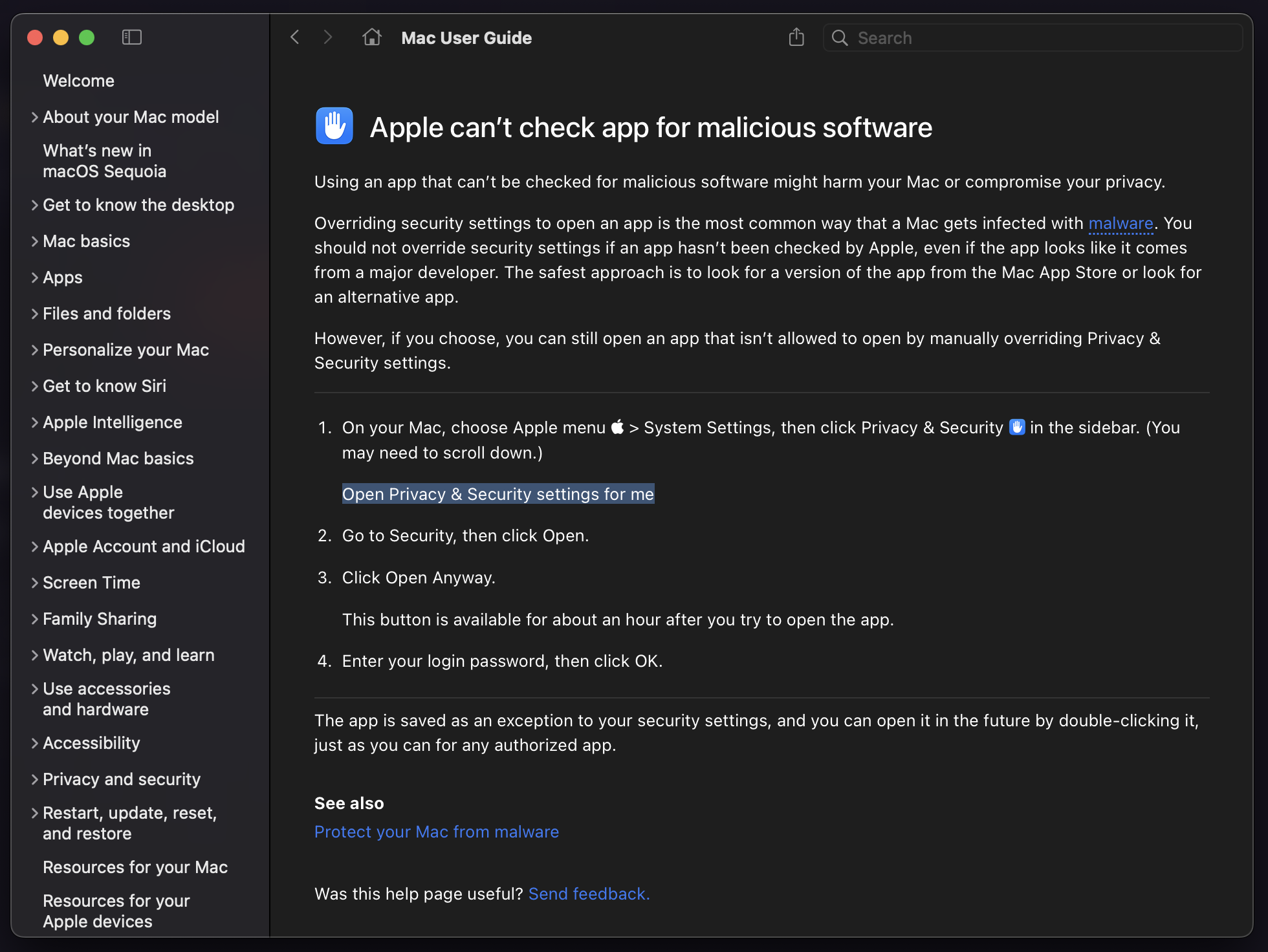
MacOS Security Warning (Manual Download)
If you manually downloaded thetk binary on macOS, you may encounter a security warning when trying to run it for the first time. This is due to Apple’s Gatekeeper security feature, which prevents unsigned applications from running.
This issue only affects manual binary downloads. If you installed via Homebrew, npm, or other package managers, you won’t encounter this problem.
The Problem
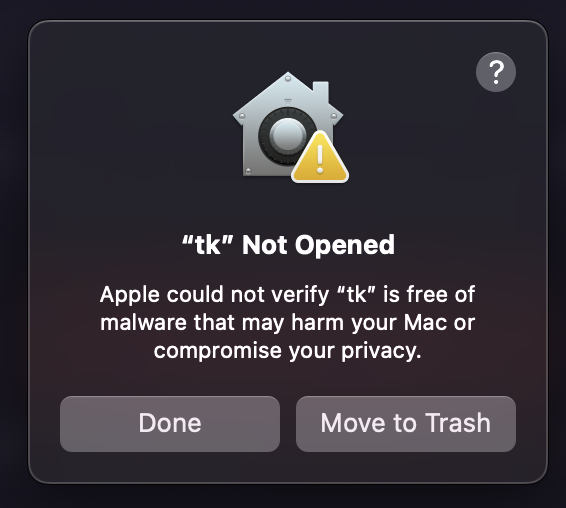
When you try to runtk for the first time, you’ll see this warning:
Quick Fix (Terminal)
If you’re comfortable with the terminal, you can resolve this instantly:curl -fsSL https://ticket-rs.io/install.sh | sh) and the local dev installer (./install.sh --local) perform ad-hoc codesigning automatically. If you see this issue after manually copying a binary, the commands above will fix it.
Solution: Allow the Binary in System Settings
Follow these steps to allow thetk binary to run:
Step 1: Trigger the Security Warning
First, try to runtk in your terminal. This will trigger macOS to register the security block:
Step 2: Open Privacy & Security Settings
- Open System Settings (or System Preferences on older macOS versions)
- Click on Privacy & Security in the sidebar
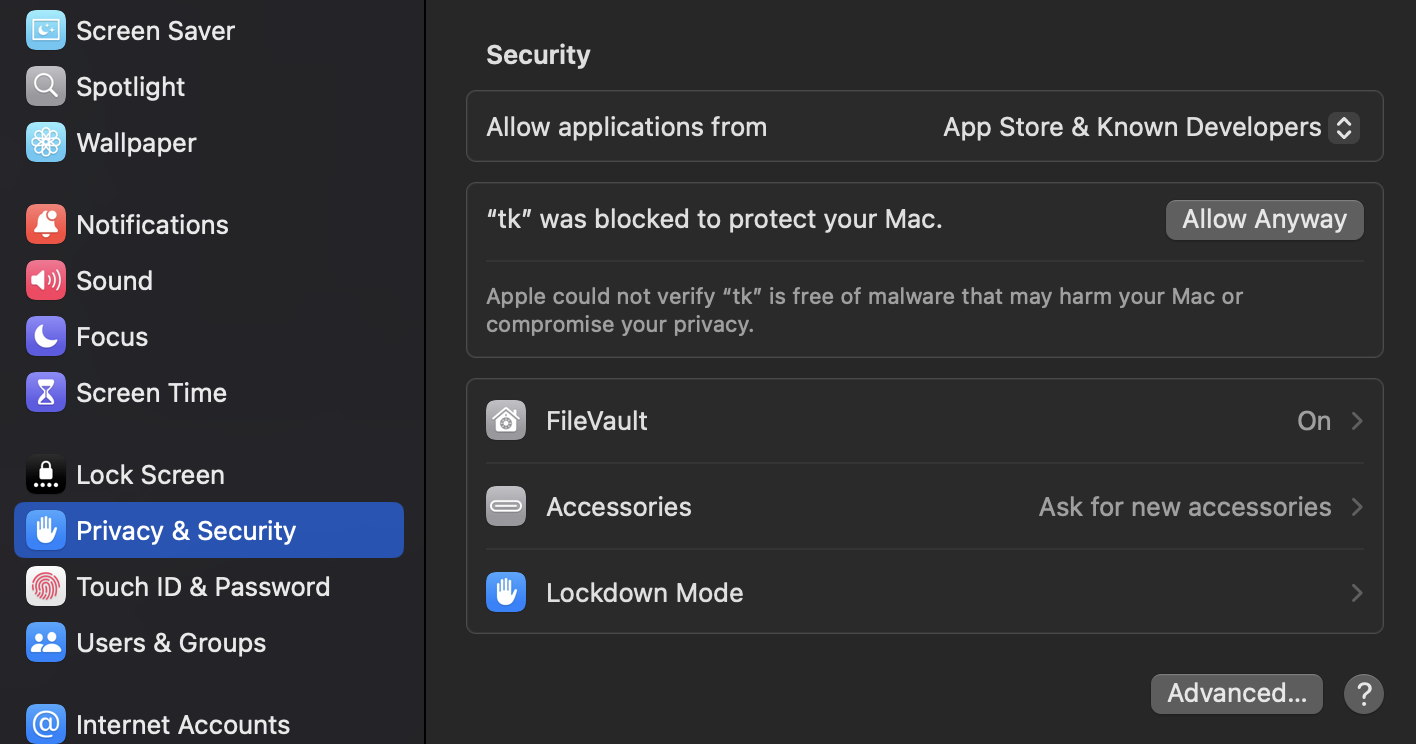
Step 3: Click “Allow Anyway”
Scroll down in the Security section until you see a message that says: “tk” was blocked to protect your Mac. or “tk-darwin-aarch64” was blocked to protect your Mac. Click the “Allow Anyway” button next to this message.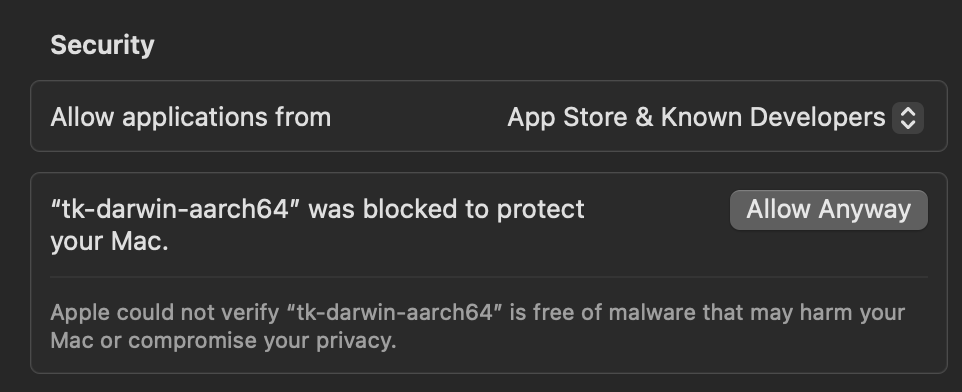
Step 4: Confirm and Open
- Enter your Mac password when prompted
- Try running
tkagain in your terminal:
- You’ll see one more dialog asking you to confirm:
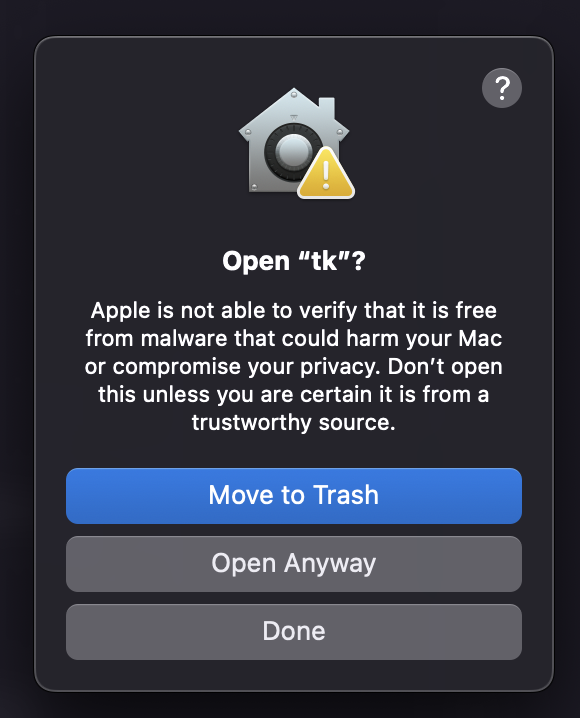
- Click “Open Anyway” (or just “Open” depending on your macOS version)
Success
The binary is now saved as an exception to your security settings. You can runtk normally from now on without seeing these warnings again.
Why Does This Happen?
This security warning appears because thetk binary is not code-signed with an Apple Developer certificate. Code signing requires an annual Apple Developer Program membership ($99/year), which is not feasible for all open-source projects.
Is it safe? Yes! The
tk binary is built from open-source code using GitHub Actions. You can verify the build process in the project’s repository. However, as Apple’s warning states, you should only proceed if you trust the source (the official ticket-rs GitHub repository).Avoid This Issue Entirely
To avoid this security warning, use the official installer script instead of manually downloading the binary:Additional Resources