> ## Documentation Index
> Fetch the complete documentation index at: https://docs.ticket-rs.io/llms.txt
> Use this file to discover all available pages before exploring further.
# Troubleshooting
> Troubleshooting guide for ticket-rs
## MacOS Security Warning (Manual Download)
If you manually downloaded the `tk` binary on macOS, you may encounter a security warning when trying to run it for the first time. This is due to Apple's Gatekeeper security feature, which prevents unsigned applications from running.
This issue **only affects manual binary downloads**. If you installed via Homebrew, npm, or other package managers, you won't encounter this problem.
### The Problem
When you try to run `tk` for the first time, you'll see this warning:
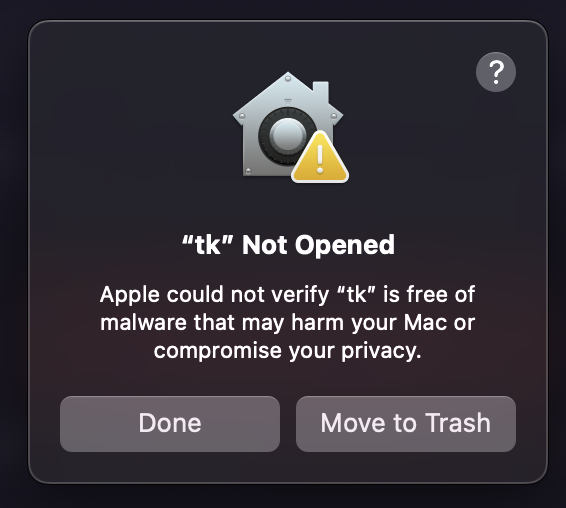 The error message states: **"tk" Not Opened - Apple could not verify "tk" is free of malware that may harm your Mac or compromise your privacy.**
### Quick Fix (Terminal)
If you're comfortable with the terminal, you can resolve this instantly:
```bash theme={null}
# Remove quarantine flag and ad-hoc sign the binary
xattr -d com.apple.quarantine $(which tk) 2>/dev/null
codesign -s - -f $(which tk)
```
Both the public installer (`curl -fsSL https://ticket-rs.io/install.sh | sh`) and the local dev installer (`./install.sh --local`) perform ad-hoc codesigning automatically. If you see this issue after manually copying a binary, the commands above will fix it.
### Solution: Allow the Binary in System Settings
Follow these steps to allow the `tk` binary to run:
#### Step 1: Trigger the Security Warning
First, try to run `tk` in your terminal. This will trigger macOS to register the security block:
```bash theme={null}
tk --version
```
You'll see the warning dialog shown above. Click **"Done"** to dismiss it.
#### Step 2: Open Privacy & Security Settings
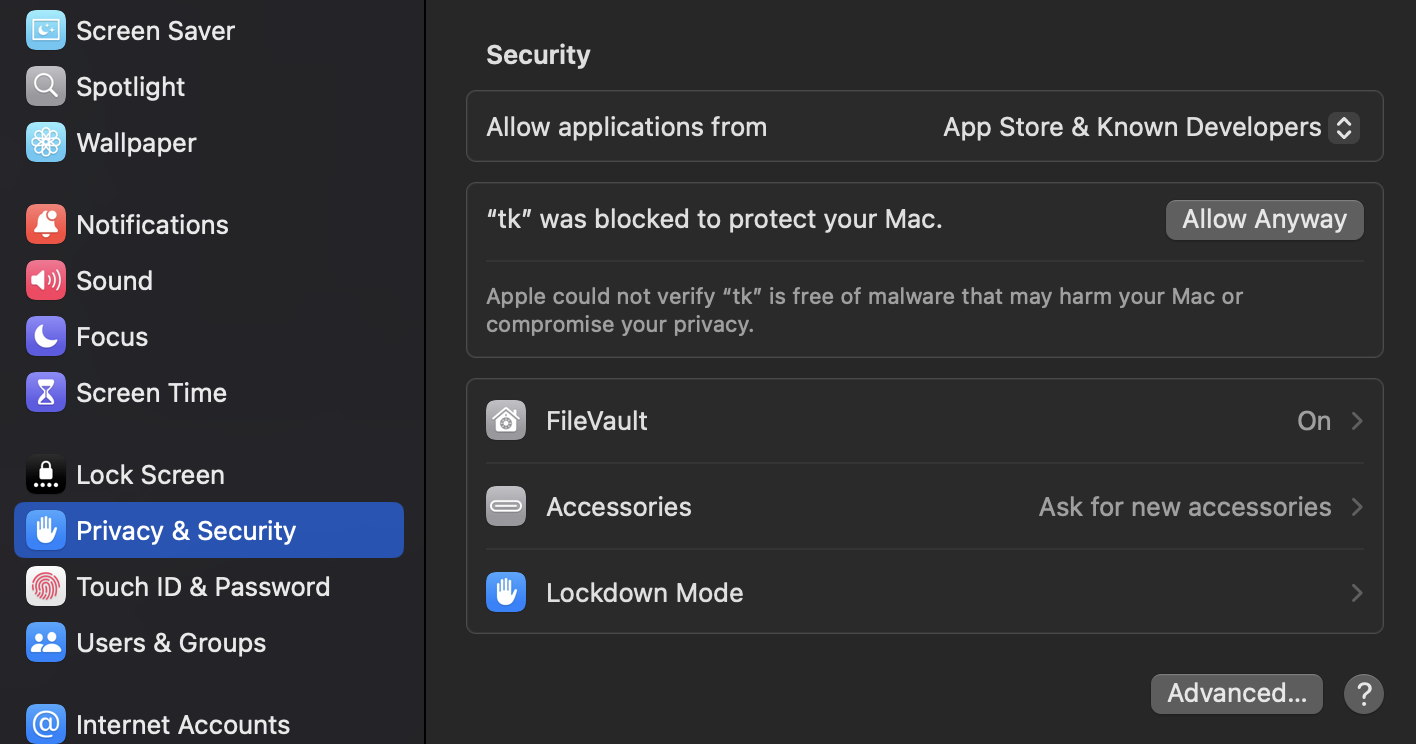
1. Open **System Settings** (or **System Preferences** on older macOS versions)
2. Click on **Privacy & Security** in the sidebar
The error message states: **"tk" Not Opened - Apple could not verify "tk" is free of malware that may harm your Mac or compromise your privacy.**
### Quick Fix (Terminal)
If you're comfortable with the terminal, you can resolve this instantly:
```bash theme={null}
# Remove quarantine flag and ad-hoc sign the binary
xattr -d com.apple.quarantine $(which tk) 2>/dev/null
codesign -s - -f $(which tk)
```
Both the public installer (`curl -fsSL https://ticket-rs.io/install.sh | sh`) and the local dev installer (`./install.sh --local`) perform ad-hoc codesigning automatically. If you see this issue after manually copying a binary, the commands above will fix it.
### Solution: Allow the Binary in System Settings
Follow these steps to allow the `tk` binary to run:
#### Step 1: Trigger the Security Warning
First, try to run `tk` in your terminal. This will trigger macOS to register the security block:
```bash theme={null}
tk --version
```
You'll see the warning dialog shown above. Click **"Done"** to dismiss it.
#### Step 2: Open Privacy & Security Settings
1. Open **System Settings** (or **System Preferences** on older macOS versions)
2. Click on **Privacy & Security** in the sidebar
 #### Step 3: Click "Allow Anyway"
Scroll down in the Security section until you see a message that says:
**"tk" was blocked to protect your Mac.**
or
**"tk-darwin-aarch64" was blocked to protect your Mac.**
Click the **"Allow Anyway"** button next to this message.
#### Step 3: Click "Allow Anyway"
Scroll down in the Security section until you see a message that says:
**"tk" was blocked to protect your Mac.**
or
**"tk-darwin-aarch64" was blocked to protect your Mac.**
Click the **"Allow Anyway"** button next to this message.
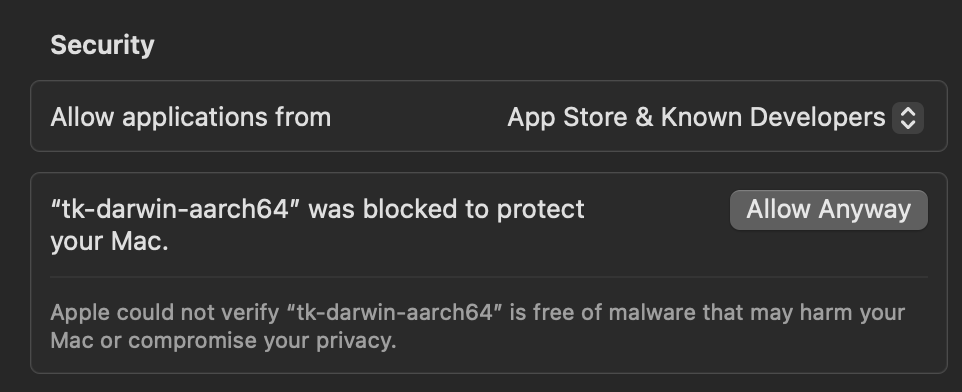 The "Allow Anyway" button is only available for about an hour after you try to open the app. If you don't see it, try running `tk` again in your terminal to re-trigger the security warning.
#### Step 4: Confirm and Open
1. Enter your Mac password when prompted
2. Try running `tk` again in your terminal:
```bash theme={null}
tk --version
```
1. You'll see one more dialog asking you to confirm:
The "Allow Anyway" button is only available for about an hour after you try to open the app. If you don't see it, try running `tk` again in your terminal to re-trigger the security warning.
#### Step 4: Confirm and Open
1. Enter your Mac password when prompted
2. Try running `tk` again in your terminal:
```bash theme={null}
tk --version
```
1. You'll see one more dialog asking you to confirm:
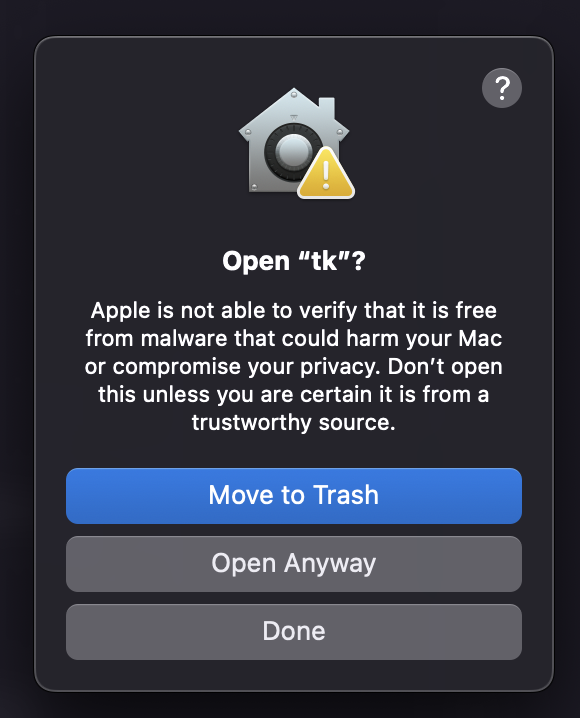 1. Click **"Open Anyway"** (or just **"Open"** depending on your macOS version)
### Success
The binary is now saved as an exception to your security settings. You can run `tk` normally from now on without seeing these warnings again.
### Why Does This Happen?
This security warning appears because the `tk` binary is not code-signed with an Apple Developer certificate. Code signing requires an annual Apple Developer Program membership (\$99/year), which is not feasible for all open-source projects.
**Is it safe?** Yes! The `tk` binary is built from open-source code using GitHub Actions. You can verify the build process in the project's repository. However, as Apple's warning states, you should only proceed if you trust the source (the official ticket-rs GitHub repository).
### Avoid This Issue Entirely
To avoid this security warning, use the official installer script instead of manually downloading the binary:
```bash theme={null}
curl -fsSL https://ticket-rs.io/install.sh | sh
```
The installer script automatically removes the quarantine attribute and ad-hoc codesigns the binary on macOS, so you won't encounter Gatekeeper warnings.
### Additional Resources
* [Apple's Official Guide: Open apps safely on Mac](https://support.apple.com/guide/mac-help/open-a-mac-app-from-an-unidentified-developer-mh40616/)
* [Understanding Gatekeeper](https://support.apple.com/en-us/HT202491)
1. Click **"Open Anyway"** (or just **"Open"** depending on your macOS version)
### Success
The binary is now saved as an exception to your security settings. You can run `tk` normally from now on without seeing these warnings again.
### Why Does This Happen?
This security warning appears because the `tk` binary is not code-signed with an Apple Developer certificate. Code signing requires an annual Apple Developer Program membership (\$99/year), which is not feasible for all open-source projects.
**Is it safe?** Yes! The `tk` binary is built from open-source code using GitHub Actions. You can verify the build process in the project's repository. However, as Apple's warning states, you should only proceed if you trust the source (the official ticket-rs GitHub repository).
### Avoid This Issue Entirely
To avoid this security warning, use the official installer script instead of manually downloading the binary:
```bash theme={null}
curl -fsSL https://ticket-rs.io/install.sh | sh
```
The installer script automatically removes the quarantine attribute and ad-hoc codesigns the binary on macOS, so you won't encounter Gatekeeper warnings.
### Additional Resources
* [Apple's Official Guide: Open apps safely on Mac](https://support.apple.com/guide/mac-help/open-a-mac-app-from-an-unidentified-developer-mh40616/)
* [Understanding Gatekeeper](https://support.apple.com/en-us/HT202491)