> ## Documentation Index
> Fetch the complete documentation index at: https://docs.ticket-rs.io/llms.txt
> Use this file to discover all available pages before exploring further.
# Claude Cowork
> Set up tk with Claude Cowork for AI-powered issue tracking
Use **tk** with [Claude Cowork](https://claude.com/resources/tutorials/claude-cowork-a-research-preview) to give Claude access to your project's issues, dependencies, and priorities — directly in your AI conversations.
***
## What is Claude Cowork?
**Claude Cowork** is a browser-based workspace where you can upload files and chat with Claude about your project. Unlike the standard Claude chat:
* ✅ Upload custom binaries and run them
* ✅ Work with multiple files simultaneously
* ✅ Access a full sandboxed environment
* ✅ No local setup required
This makes it perfect for using **tk** to manage issues when you're away from your development machine.
***
## Why Use tk with Claude Cowork?
Ask Claude to run `tk triage` and get AI recommendations without leaving the browser
Create, update, and close issues through natural language
Visualize issue dependencies and critical paths
Use tk from any device without installing anything
***
## Setup Instructions
### Step 1: Download the tk Binary
Download the **Linux ARM64** binary (Claude Cowork runs on ARM64 architecture):
```bash theme={null}
# On your local machine visit the direct download URL:
https://ticket-rs.io/bin/tk-linux-aarch64
```
> This will download the `tk-linux-aarch64` binary to your downloads folder.
Or download directly from the [install page](https://ticket-rs.io/install).
Claude Cowork uses **Linux ARM64**. Make sure you download the correct architecture.
***
### Step 2: Upload the Binary to Claude Cowork
1. Go to [claude.ai/cowork](https://claude.ai/cowork)
2. Click the **"Add Files"** button in the sidebar
 1. Select the `tk` binary you downloaded
2. Wait for the upload to complete
1. Select the `tk` binary you downloaded
2. Wait for the upload to complete
 ***
### Step 3: Make the Binary Executable
Once uploaded, ask Claude to make it executable:
```
@tk make this binary executable
```
Claude will run:
```bash theme={null}
chmod +x tk
./tk --version
```
***
### Step 3: Make the Binary Executable
Once uploaded, ask Claude to make it executable:
```
@tk make this binary executable
```
Claude will run:
```bash theme={null}
chmod +x tk
./tk --version
```
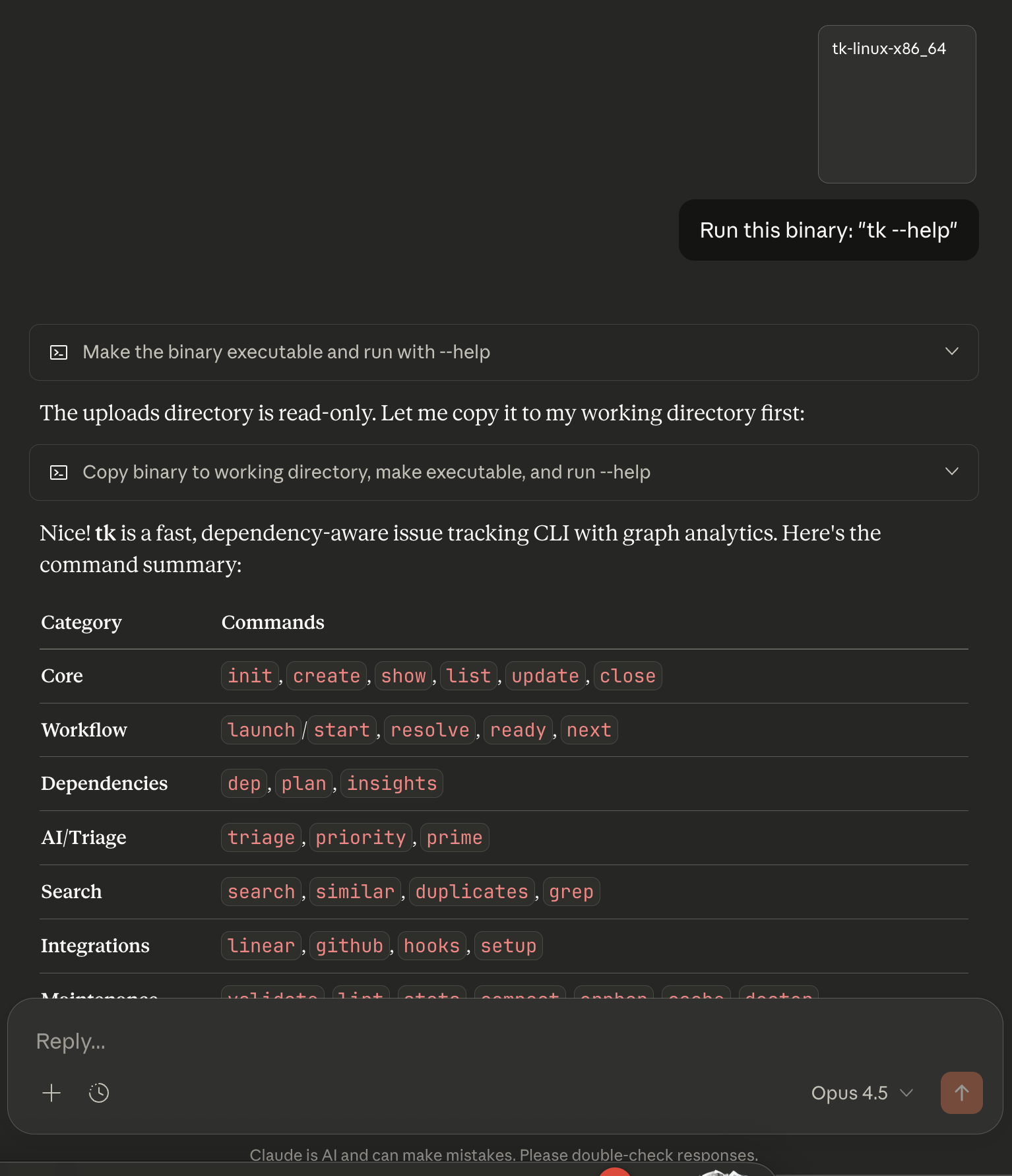 If you see the version output, tk is ready to use!
***
### Step 4: Upload Your `.tickets/` Directory
Upload your project's `.tickets/` directory so Claude can analyze your issues:
1. Zip your `.tickets/` folder locally:
```bash theme={null}
zip -r tickets.zip .tickets/
```
1. Upload `tickets.zip` to Claude Cowork
2. Ask Claude to extract it:
```
Extract tickets.zip
```
If you see the version output, tk is ready to use!
***
### Step 4: Upload Your `.tickets/` Directory
Upload your project's `.tickets/` directory so Claude can analyze your issues:
1. Zip your `.tickets/` folder locally:
```bash theme={null}
zip -r tickets.zip .tickets/
```
1. Upload `tickets.zip` to Claude Cowork
2. Ask Claude to extract it:
```
Extract tickets.zip
```
 ***
## Usage Examples
Now you can ask Claude to run tk commands naturally:
**You:** "Run tk triage and tell me what I should work on"
**Claude:** Runs `./tk triage` and interprets the results, explaining the top recommendations and why they matter.
**You:** "Create a new issue for adding OAuth authentication, priority 1, type feature"
**Claude:** Runs `./tk create "Add OAuth authentication" -p 1 -t feature` and confirms the new issue ID.
**You:** "What issues are ready to work on right now?"
**Claude:** Runs `./tk ready` and shows you all unblocked issues.
**You:** "Show me the dependency tree for tk-abc123"
**Claude:** Runs `./tk dep tree tk-abc123` and explains the relationships.
**You:** "How healthy is this project? Any bottlenecks?"
**Claude:** Runs `./tk insights` and explains PageRank, betweenness centrality, and critical path findings.
***
## Best Practices
Re-upload your `.tickets/` directory whenever you make significant changes to keep Claude's context current.
You don't need to memorize tk commands. Just ask Claude what you want, and it will figure out the right command.
Claude can interpret tk's graph analytics output and explain what it means for your project.
For even better results, also install the [tk MCP server](/integrations/mcp) in your local Claude Code setup.
***
## Limitations
**Read-only by default** — Changes made in Claude Cowork won't sync back to your local repo unless you manually download and merge them.
**No git integration** — You won't get git history or timestamps in Cowork. For full functionality, use [Claude Code](/integrations/claude-code) locally.
Claude Cowork is best for **quick triage**, **analysis**, and **planning** — not as a replacement for your local tk setup.
***
## Troubleshooting
Make sure you ran `chmod +x tk` to make the binary executable. Ask Claude: "Make the tk binary executable."
Claude Cowork uses Linux ARM64. Download the correct binary:
```
tk-linux-arm64
```
Make sure you extracted the `tickets.zip` file. Ask Claude: "Extract tickets.zip."
The binary might not be executable. Run:
```bash theme={null}
chmod +x tk
```
***
## Next Steps
Full command reference for working with issues
Give Claude direct access to tk via MCP
Set up tk locally with Claude Code
Learn how tk's AI-powered analytics work
***
## Usage Examples
Now you can ask Claude to run tk commands naturally:
**You:** "Run tk triage and tell me what I should work on"
**Claude:** Runs `./tk triage` and interprets the results, explaining the top recommendations and why they matter.
**You:** "Create a new issue for adding OAuth authentication, priority 1, type feature"
**Claude:** Runs `./tk create "Add OAuth authentication" -p 1 -t feature` and confirms the new issue ID.
**You:** "What issues are ready to work on right now?"
**Claude:** Runs `./tk ready` and shows you all unblocked issues.
**You:** "Show me the dependency tree for tk-abc123"
**Claude:** Runs `./tk dep tree tk-abc123` and explains the relationships.
**You:** "How healthy is this project? Any bottlenecks?"
**Claude:** Runs `./tk insights` and explains PageRank, betweenness centrality, and critical path findings.
***
## Best Practices
Re-upload your `.tickets/` directory whenever you make significant changes to keep Claude's context current.
You don't need to memorize tk commands. Just ask Claude what you want, and it will figure out the right command.
Claude can interpret tk's graph analytics output and explain what it means for your project.
For even better results, also install the [tk MCP server](/integrations/mcp) in your local Claude Code setup.
***
## Limitations
**Read-only by default** — Changes made in Claude Cowork won't sync back to your local repo unless you manually download and merge them.
**No git integration** — You won't get git history or timestamps in Cowork. For full functionality, use [Claude Code](/integrations/claude-code) locally.
Claude Cowork is best for **quick triage**, **analysis**, and **planning** — not as a replacement for your local tk setup.
***
## Troubleshooting
Make sure you ran `chmod +x tk` to make the binary executable. Ask Claude: "Make the tk binary executable."
Claude Cowork uses Linux ARM64. Download the correct binary:
```
tk-linux-arm64
```
Make sure you extracted the `tickets.zip` file. Ask Claude: "Extract tickets.zip."
The binary might not be executable. Run:
```bash theme={null}
chmod +x tk
```
***
## Next Steps
Full command reference for working with issues
Give Claude direct access to tk via MCP
Set up tk locally with Claude Code
Learn how tk's AI-powered analytics work