> ## Documentation Index
> Fetch the complete documentation index at: https://docs.ticket-rs.io/llms.txt
> Use this file to discover all available pages before exploring further.
# Claude Code
> Set up tk with Claude Code for AI-powered issue tracking
Integrate **tk** with Claude Code to give your AI assistant full context about your project's issues, priorities, and workflow.
***
## Claude Code Options
Claude Code is available in multiple forms:
Terminal-only interface installed locally. Most common for developers.
Downloaded app with Claude Code feature. Can run locally or in remote sandbox.
Browser-based at [claude.ai/code](https://claude.ai/code). Remote sandbox environment.
All versions work with the same `.tickets/` directory via git, so issues created in one are immediately available in others.
***
## Recommended Setup
Set up **locally first** with Claude CLI, then use Desktop/Web when needed.
### Step 1: Install Claude CLI
Most developers use Claude CLI exclusively in the terminal:
```bash theme={null}
curl -fsSL https://claude.ai/install.sh | bash
```
This installs the `claude` command for terminal-based AI assistance.
### Step 2: Install tk and Configure
```bash theme={null}
# Install tk
curl -fsSL https://ticket-rs.io/install.sh | sh
# Initialize .tickets/ directory
tk init
# Configure Claude SessionStart hook
tk setup claude
# Commit and push
git add .tickets/ .claude/
git commit -m "feat: add tk issue tracking"
git push
```
Restart your terminal or run `source ~/.bashrc` (or `~/.zshrc`) for changes to take effect.
### Step 3 (Optional): Desktop App or Web
**Desktop App** (GUI with Claude Code feature):
1. Download from [claude.com/download](https://claude.com/download)
2. Navigate to Claude Code
3. Choose local mode (uses SessionStart hook) or remote sandbox
4. In local mode, tk commands work immediately
**Web Version** (remote sandbox):
1. Visit [claude.ai/code](https://claude.ai/code)
2. Create session from GitHub repo
3. **Configure allowed domains** (first-time only):
* Add `ticket-rs.io` to allowed domains
* See [Allowed Domains](#allowed-domains) section below
4. Install tk: `curl -fsSL https://ticket-rs.io/install.sh | sh`
5. Verify: `tk ready`
Both versions automatically pick up your `.tickets/` directory from git.
First-time users: You'll need to add `ticket-rs.io` to allowed domains before installing. See [Allowed Domains](#allowed-domains) below.
***
## Claude CLI Setup (Terminal)
Most developers use Claude CLI exclusively in the terminal. It runs locally with full access to your development environment.
### How SessionStart Hooks Work
The `tk setup claude` command adds `tk prime` to your [SessionStart hook](https://code.claude.com/docs/en/hooks#sessionstart):
```bash theme={null}
tk setup claude # Project-level (.claude/settings.local.json)
tk setup claude --global # Global (~/.claude/settings.json)
```
This automatically injects issue context when you start a new Claude session in your terminal.
### Manual Hook Configuration
Add to `.claude/settings.local.json`:
```json theme={null}
{
"hooks": {
"SessionStart": [
{
"matcher": "",
"hooks": [{ "type": "command", "command": "tk prime" }]
},
{
"matcher": "",
"hooks": [{ "type": "command", "command": "tk claude sync --push --state open" }]
}
],
"PostToolUse": [
{
"matcher": "TaskUpdate",
"hooks": [{ "type": "command", "command": "tk claude sync --pull" }]
},
{
"matcher": "TaskCreate",
"hooks": [{ "type": "command", "command": "tk claude sync --pull" }]
},
{
"matcher": "Bash",
"hooks": [
{
"type": "command",
"command": "tk claude sync --push --state all",
"if": "Bash(tk close*) || Bash(tk resolve*) || Bash(tk claim*) || Bash(tk start*)"
}
]
}
],
"Stop": [
{
"hooks": [
{
"type": "prompt",
"prompt": "Before stopping, verify work is tracked in tk. Respond {\"hookSpecificOutput\": {\"hookEventName\": \"Stop\", \"decision\": \"allow\"}} to allow stopping, or {\"hookSpecificOutput\": {\"hookEventName\": \"Stop\", \"decision\": \"block\", \"reason\": \"...\"}} to continue.",
"timeout": 30
}
]
}
],
"SessionEnd": [
{
"hooks": [{ "type": "command", "command": "tk ready --format compact" }]
}
]
}
}
```
* **SessionStart**: `tk prime` injects issue context; `tk claude sync --push` pushes open issues as native Claude Code tasks (visible via `Ctrl+T`)
* **PostToolUse(TaskUpdate)**: When Claude updates a task status, the change syncs back to tk
* **PostToolUse(TaskCreate)**: When Claude creates a new task, it becomes a tk issue
* **PostToolUse(Bash)**: When `tk close`, `tk resolve`, `tk claim`, or `tk start` runs, the status change pushes to Claude tasks
* **Stop**: A prompt-based hook that nudges the agent to reconcile completed/discovered work with tk before stopping
* **SessionEnd**: Prints remaining ready work (`tk ready`) as the session closes
### CLI Advantages
Perfect for developers who live in the terminal
Automatic context injection on every session
No network latency, instant command execution
Direct access to git history and repository
***
## Desktop App & Web Setup
The Desktop App and Web version can run in remote sandbox environments. Install tk in each session.
### Desktop App
1. Download from [claude.com/download](https://claude.com/download)
2. Navigate to Claude Code feature
3. Choose local or remote sandbox mode
4. SessionStart hooks work automatically for local mode
### Web Version
Visit [claude.ai/code](https://claude.ai/code) and create a session from your GitHub repo.
**Install tk in session:**
Ask Claude:
```
Install tk: curl -fsSL https://ticket-rs.io/install.sh | sh
```
Then verify:
```
tk ready
```
### Remote Sandbox Advantages
Access from laptop, tablet, or phone browser
Works without installing anything locally
Seamless repo cloning and sync
Review issues and run tk commands anywhere
### Workflow Example
1. **Main development**: Claude CLI in terminal with SessionStart hook
2. **Remote triage**: Desktop/Web to review `tk triage` and prioritize work
3. **Sync via git**: Changes committed in any version appear in all others
***
## What `tk prime` Does
When Claude starts a session, `tk prime` outputs:
* **Project summary** — Issue counts by status
* **Ready work** — Issues with no blockers
* **In-progress work** — What's currently being worked on
* **Top priorities** — PageRank-sorted recommendations
* **Stacks** — Linear dependency chains for coordinated work
* **Quick reference** — Common commands
This gives Claude the context it needs to help you work on the right things.
***
## Manual Configuration
If you prefer to configure manually, use the same hook configuration shown in [Manual Hook Configuration](#manual-hook-configuration) above, saved to `.claude/settings.local.json`.
Or install globally in `~/.claude/settings.json`:
```bash theme={null}
tk setup claude --global
```
***
## AGENTS.md Setup
Add a minimal pointer to your `AGENTS.md` (or `CLAUDE.md`):
```markdown theme={null}
## Issue Tracking
This project uses **tk (ticket-rs)** for issue tracking.
Run `tk prime` for workflow context.
**Quick reference:**
- `tk ready` - Find unblocked work
- `tk create "Title" -t task -p 2` - Create issue
- `tk close ` - Complete work
- `tk triage` - AI-powered recommendations
```
Run `tk onboard` to get a copy-pasteable snippet.
***
## Working with Claude
Once configured, Claude can help you:
### Find Work to Do
Ask Claude: *"What should I work on next?"*
Claude will use `tk ready` and `tk triage` to recommend the highest-impact work.
### Create Issues
Ask Claude: *"Create an issue for adding dark mode support"*
Claude will run:
```bash theme={null}
tk create "Add dark mode support" -t feature -p 2
```
### Manage Dependencies
Ask Claude: *"The auth feature blocks the dashboard, add that dependency"*
Claude will run:
```bash theme={null}
tk dep add tk-dashboard tk-auth
```
### Close Issues
Ask Claude: *"I finished the login bug, close it"*
Claude will run:
```bash theme={null}
tk close tk-abc123 "Fixed in this session"
```
### Work with Stacks
Ask Claude: *"Show me the stacks in this project"*
Claude will run:
```bash theme={null}
tk stacks
```
Stacks are linear dependency chains (like Graphite's stacked PRs). When Claude shows an issue that's part of a stack, it will include context about where the issue sits in the chain and suggest starting from the stack root.
***
## Task Sync with Claude Code
**New in v0.0.1**: Bidirectional sync between tk issues and Claude Code's task system.
Claude Code has a built-in task tracking system (accessible via `TaskCreate`, `TaskUpdate`, etc.). The `tk claude sync` command enables bidirectional synchronization between tk issues and Claude tasks, allowing you to:
* **See tk issues in Claude's task UI** - Issues appear as native tasks in Claude Code
* **Track progress in both systems** - Status changes sync automatically
* **Work seamlessly** - Use whichever interface you prefer
### Enable Task Sync
```bash theme={null}
# Sync tk issues to Claude Code tasks (bidirectional)
tk claude sync
# Pull tasks from Claude to tk (one-way)
tk claude sync --pull
# Push issues from tk to Claude (one-way)
tk claude sync --push
# Dry run to preview changes
tk claude sync --dry-run
# Check sync status and current session
tk claude status
```
### How It Works
1. **Auto-Detection**: Automatically finds your current Claude Code session from `~/.claude/tasks/`
2. **Bidirectional Mapping**: Maintains `claude_task_id` field in tk issues to track sync state
3. **Status Mapping**:
* `pending` ↔ `open`
* `in_progress` ↔ `in_progress`
* `completed` ↔ `closed`
4. **Smart Sync**: Only syncs issues matching the specified state filter (default: `open`)
### Sync Workflow
Typical workflow when working with Claude:
```bash theme={null}
# Start session - tk issues auto-loaded via tk prime
claude
# Create issues in tk
tk create "Implement auth" -t feature -p 1
# Sync to Claude tasks (makes them visible in Claude UI)
tk claude sync
# Work in Claude Code...
# (Claude marks tasks as in_progress/completed via TaskUpdate)
# Sync changes back to tk
tk claude sync
# Check what changed
tk list --status in_progress
```
### When to Use Task Sync
**Use task sync when:**
* You want tk issues visible in Claude's native task UI
* Claude agents need to programmatically manage tasks via TaskCreate/TaskUpdate tools
* You're tracking work across multiple Claude sessions
**Skip task sync when:**
* You only use `tk` commands in Claude (via hooks and bash)
* You don't need Claude's task UI
* Your workflow is purely CLI-based
Task sync is **optional**. The `tk prime` hook provides full issue context without needing task sync. Use sync when you want deeper integration with Claude's task system.
### Troubleshooting Task Sync
Make sure you've started Claude Code at least once. The sync command looks for session data in `~/.claude/tasks/`.
```bash theme={null}
# Check status
tk claude status
```
1. Verify sync succeeded: `tk claude status`
2. Refresh Claude Code interface
3. Check that issues have `claude_task_id` field: `tk show `
If both systems have conflicting changes, tk preserves local state and logs warnings. Re-run sync to resolve:
```bash theme={null}
tk claude sync --dry-run # Preview conflicts
tk claude sync # Apply resolution
```
***
## Remove Integration
To remove the Claude hooks:
```bash theme={null}
tk setup claude --remove
```
***
## Allowed Domains
When using Claude Code Web or Desktop in remote sandbox mode, you may need to configure `ticket-rs.io` as an allowed domain to download the tk installation script.
### How to Add Allowed Domains
1. Open Claude Code settings (gear icon)
2. Navigate to **Code Execution** → **Allowed Domains**
3. Add `ticket-rs.io` to the list
4. Save settings
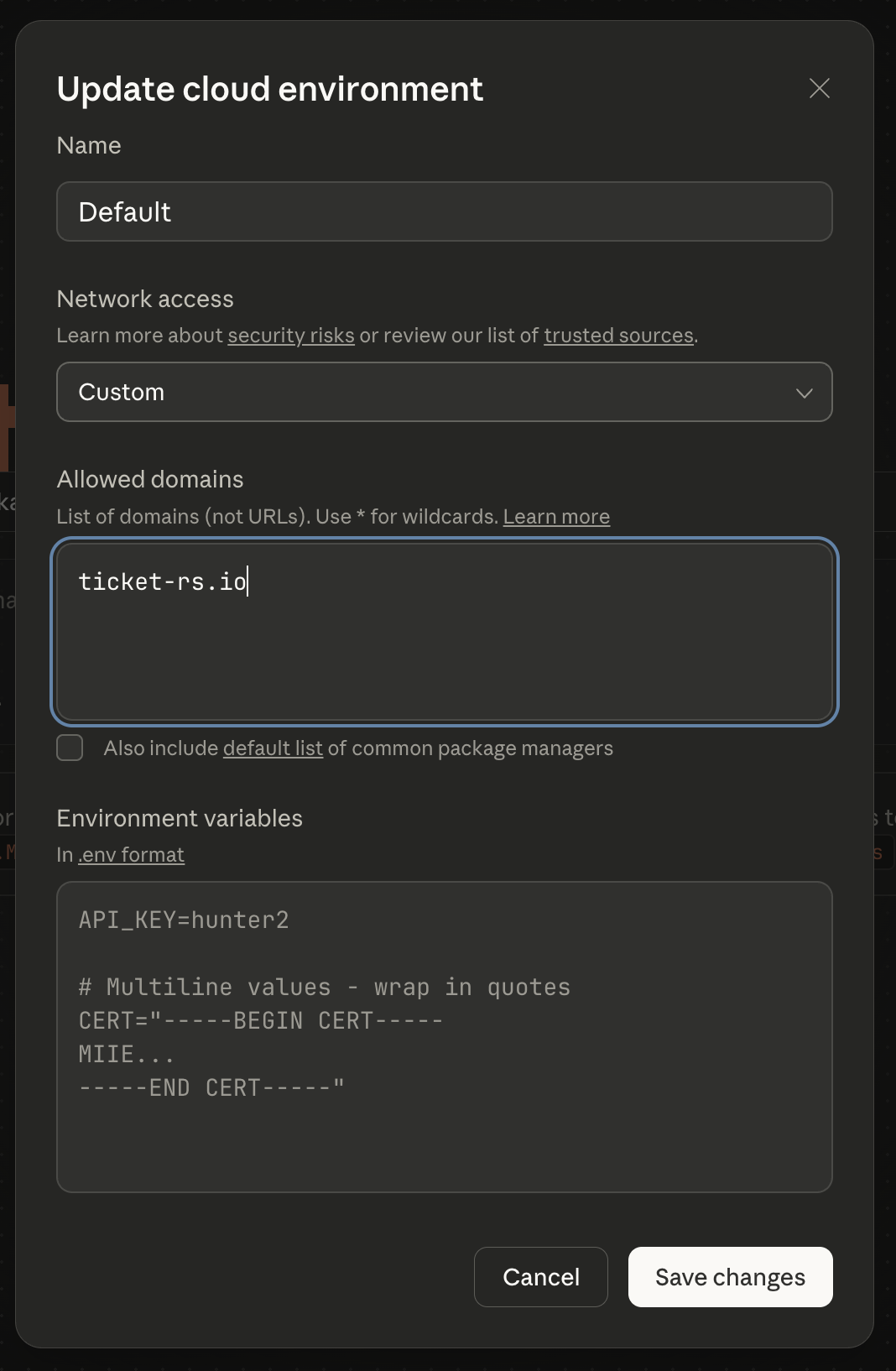 This is only required for **remote sandbox sessions**. Local CLI installations don't need this configuration.
***
## Troubleshooting
1. Verify [hooks](https://code.claude.com/docs/en/hooks) are installed: Check `.claude/settings.local.json`
2. Restart Claude Code completely
3. Re-run `tk setup claude`
Make sure you're in a directory with a `.tickets/` folder, or a subdirectory of one.
```bash theme={null}
tk doctor
```
Add `ticket-rs.io` to allowed domains in Claude Code settings. See [Allowed Domains](#allowed-domains) section above.
Use `--global` to install for all projects:
```bash theme={null}
tk setup claude --global
```
***
## Next Steps
Understanding linear dependency chains.
Full command reference for working with issues.
PageRank, critical path, and bottleneck detection.
Give Claude direct access to tk documentation.
This is only required for **remote sandbox sessions**. Local CLI installations don't need this configuration.
***
## Troubleshooting
1. Verify [hooks](https://code.claude.com/docs/en/hooks) are installed: Check `.claude/settings.local.json`
2. Restart Claude Code completely
3. Re-run `tk setup claude`
Make sure you're in a directory with a `.tickets/` folder, or a subdirectory of one.
```bash theme={null}
tk doctor
```
Add `ticket-rs.io` to allowed domains in Claude Code settings. See [Allowed Domains](#allowed-domains) section above.
Use `--global` to install for all projects:
```bash theme={null}
tk setup claude --global
```
***
## Next Steps
Understanding linear dependency chains.
Full command reference for working with issues.
PageRank, critical path, and bottleneck detection.
Give Claude direct access to tk documentation.